
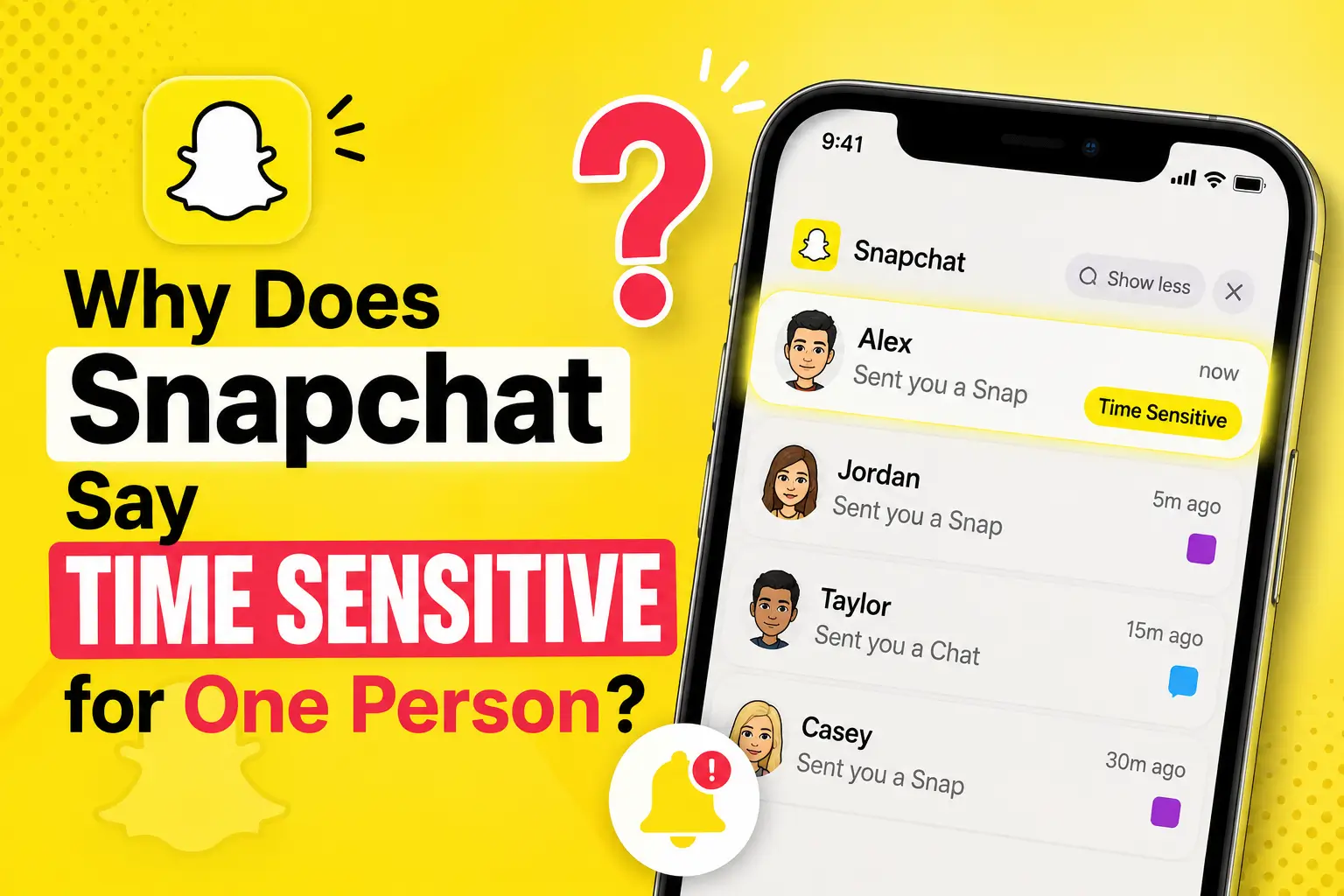
Snapchat says “Time Sensitive” when an alert uses Apple’s priority delivery category. If the label appears for one person, Snapchat’s help pages don’t explain the exact contact-selection rule.
The label alone doesn’t prove they pinned you or made you their best friend. It also doesn’t prove they deliberately marked their message urgent.
Apple’s notification documentation describes Time Sensitive as a category apps can request. Your iPhone controls whether those alerts can interrupt you.
What does Time Sensitive mean on Snapchat?
Time Sensitive alerts can arrive immediately through certain notification filters. These include Focus modes and Scheduled Summary, when your settings allow it.
Focus controls interruptions during activities such as work or sleep. Scheduled Summary groups selected notifications for delivery at chosen times.
A Time Sensitive Snapchat alert requests special delivery treatment. That doesn’t establish whether the message matters to you.
There are two separate decisions:
- Snapchat supplies the alert’s notification category.
- Your iPhone applies your notification and Focus settings.
Why do only one person’s Snaps say Time Sensitive?
Seeing the label for one contact means those alerts received Time Sensitive treatment. The label doesn’t reveal the rule Snapchat used.
Snapchat’s official help pages reviewed for this article don’t publish that rule. Claims about chat frequency, unread messages, or recent activity remain unconfirmed explanations.
One Reddit user reported the label for someone they contacted less than other friends. Another said it remained on a former top friend’s alerts after their Best Friend changed.
These reports describe people’s experiences. They don’t establish Snapchat’s algorithm or how common the behavior is.
When comparing contacts, check:
- Whether you’re comparing Chats, Snaps, calls, or Story alerts.
- Whether a Focus was active for each alert.
- Whether you’ve muted either person’s chat or calls.
Those checks help explain delivery differences. They don’t prove why Snapchat assigned the label.
Does Time Sensitive mean they pinned you or chose you as a best friend?
You can’t reliably infer friendship status from this notification label. Snapchat documents friendship features separately.
| Assumption | What the documented feature tells you |
|---|---|
| “They pinned me.” | A pinned conversation stays at the top of the Chat screen. |
| “I’m their number-one best friend.” | Best Friends reflect Snap and Chat activity. The label doesn’t reveal that ranking. |
| “They have Snapchat+.” | The label isn’t evidence of a paid subscription. |
| “Our streak is ending.” | Snapchat uses an hourglass Friend Emoji for that warning. |
| “They manually marked this urgent.” | The label doesn’t establish that the sender selected an urgency option. |
Snapchat’s guidance explains conversation pinning, Best Friends, and Friend Emojis. It doesn’t document these features as guaranteed Time Sensitive triggers.
For details on paid features, read our guide to what Snapchat Plus does.
How to turn off Time Sensitive notifications on Snapchat
Choose the setting based on what you want to stop:
| Your goal | Setting to change |
|---|---|
| Remove Snapchat’s Time Sensitive permission | Snapchat’s notification settings in iPhone Settings |
| Stop Time Sensitive interruptions during a particular Focus | That Focus’s Time Sensitive permission |
| Stop alerts from one friend | That friend’s Snapchat notification settings |
| Stop all Snapchat push notifications | Snapchat’s Allow Notifications switch in iPhone Settings |
Turn off Snapchat’s Time Sensitive permission on iPhone
- Open your iPhone’s Settings.
- Tap Notifications.
- Select Snapchat.
- Turn off Time Sensitive Notifications, if shown.
Leave Allow Notifications enabled if you still want regular alerts. Switching off Time Sensitive removes that special permission; other notification rules still apply.
Block Time Sensitive interruptions during a Focus
- Open Settings, then Focus.
- Choose the profile you use, such as Do Not Disturb or Sleep.
- Tap Apps or Choose Apps.
- Turn off Time Sensitive Notifications.
This Focus setting applies across supported apps. Review allowed apps and people too, since their alerts can still arrive.
How to mute Snapchat notifications from one person
Use Snapchat’s contact controls when one friend’s alerts are the problem.
- Open Snapchat’s Chat screen.
- Press and hold the friend’s name.
- Tap Chat and Notification Settings.
- Tap Notification Settings.
- Enable Mute Chats, Mute Calls, or both.
Muting lets their Snaps and Chats arrive without push alerts. Snapchat says the other person isn’t notified that you muted them.
Why does Snapchat still interrupt Do Not Disturb?
Turning off Time Sensitive doesn’t disable every route through Focus. Your active profile may allow Snapchat or a particular person.
Check the profile that’s active when the alert arrives:
- Review Snapchat under Apps.
- Review permitted contacts under People.
- Check that profile’s Time Sensitive Notifications switch.
- Review Intelligent Breakthrough & Silencing, if available and enabled.
Apple Intelligence can separately allow notifications it considers important. That control is distinct from the Time Sensitive category.
For complete app-level silence, turn off Allow Notifications under Settings > Notifications > Snapchat. This also stops ordinary Snapchat push alerts.
Does Snapchat have Time Sensitive notifications on Android?
The Time Sensitive category discussed here belongs to Apple’s notification system. Android’s notification controls use different options.
To adjust alerts inside Snapchat on Android:
- Tap your profile icon.
- Open Settings using the gear icon.
- Tap Notifications.
- Adjust the notification options you want to receive.
Don’t expect the iPhone’s Time Sensitive switch in Android settings.
Frequently asked questions
Can I make one person’s Snapchat notifications Time Sensitive?
The iPhone permission applies to Snapchat as an app. Snapchat’s reviewed support pages don’t document a switch that assigns this label to a chosen friend.
Pinning their conversation can make the chat easier to find. It doesn’t guarantee Time Sensitive phone alerts.
Does the sender need Time Sensitive notifications enabled too?
Their notification permission controls alerts on their own phone. It doesn’t act as a matching permission for your device.
Your settings control whether your phone allows Time Sensitive delivery.
Does Time Sensitive mean someone is online or checking my profile?
The label describes notification delivery. It doesn’t establish that someone is online, viewing your profile, or peeking at your chat.
If you’re checking activity status, our guide explains what the green dot means on Snapchat.
How long does a Time Sensitive Snap last?
The label doesn’t give you a deadline for opening the Snap. Notification prominence and Snap availability are separate matters.
The official pages reviewed here don’t establish a fixed Snapchat Lock Screen duration.
Snapchat has separate viewing and expiry features, including certain Snapchat+ Snap Modes. Check the Snap’s actual settings instead of treating the notification label as a timer.
Can Time Sensitive notifications override Silent mode?
Time Sensitive notifications don’t bypass the iPhone’s Ring/Silent setting. Critical alerts are a separate category with that capability.
Why can’t I find the Time Sensitive switch?
Apple shows this option for apps that support it. Start in iPhone Settings > Notifications > Snapchat, rather than Snapchat’s in-app settings.
If it isn’t shown, use the available notification controls. You can still adjust alerts or mute the particular friend.
What if the alert appears but there’s no new Snap?
Read the alert’s wording before assuming it’s a direct message. Users have reported reminders and alerts without a matching visible chat.
The Time Sensitive label alone can’t diagnose the cause. If it keeps happening, record the wording and check Snapchat’s notification categories.
How do I turn Time Sensitive notifications back on?
Return to Settings > Notifications > Snapchat and enable Time Sensitive Notifications, if available. Also allow them within your active Focus if you want those interruptions.